My shipments
Your personal customer environment (dashboard - desktop)
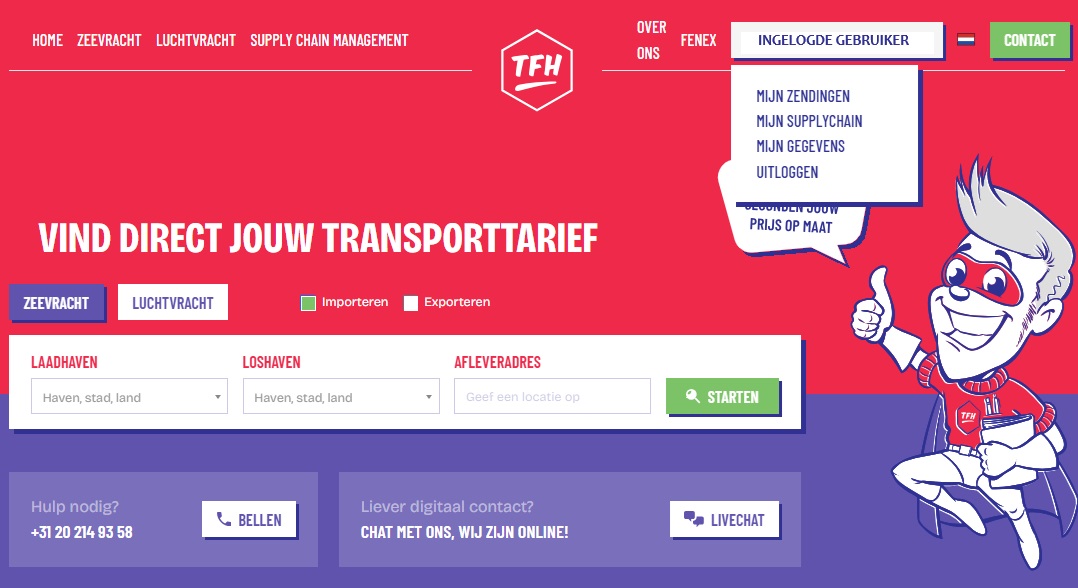
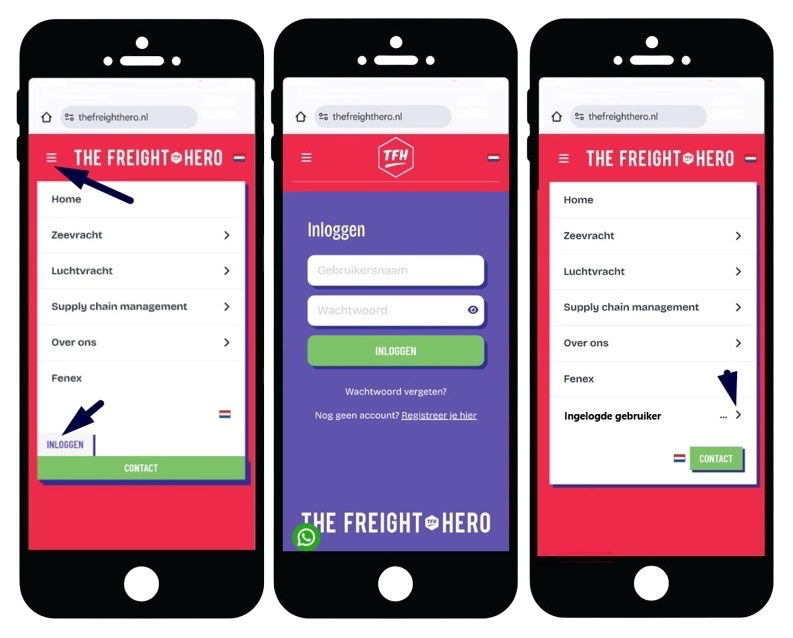
You consult your shipment in your own customer environment (dashboard). At the top right of the page you can click to log in via the login screen with your username and password. After logging in you can, by clicking on your username, gain access to, among other things, "MY SHIPMENTS". Here you can follow your shipment in real time. In your own customer environment you can also change your profile in "MY DETAILS". You can also add and save supplier lists, delivery addresses and HS Codes, which simplifies the booking of a later shipment.
My shipments
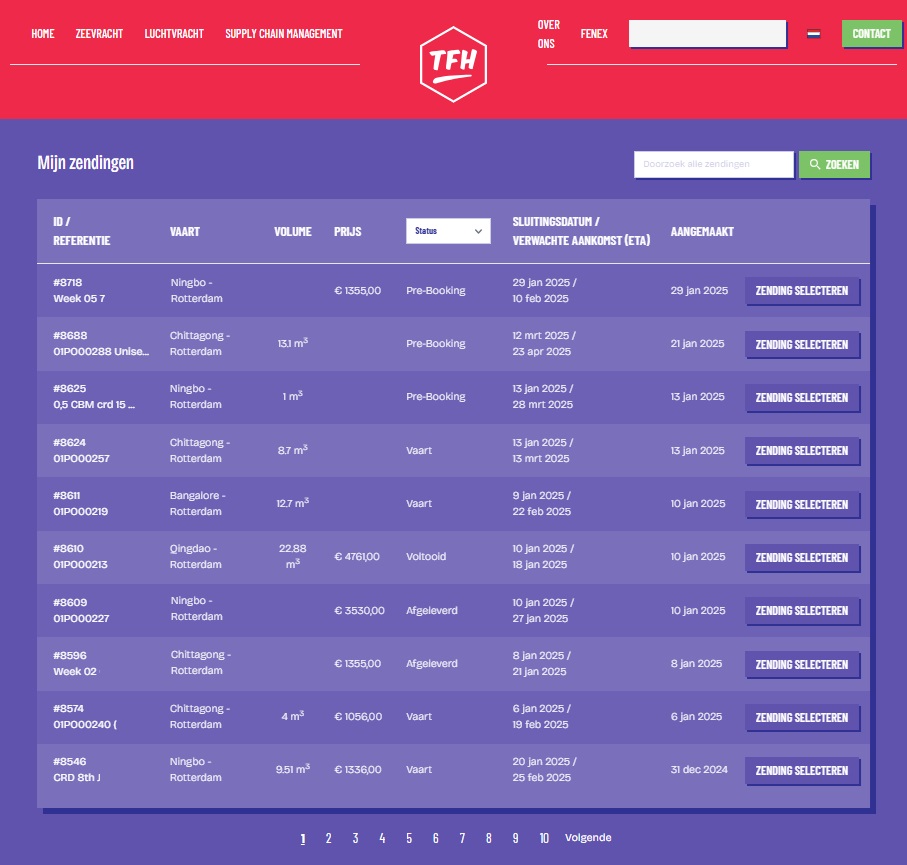
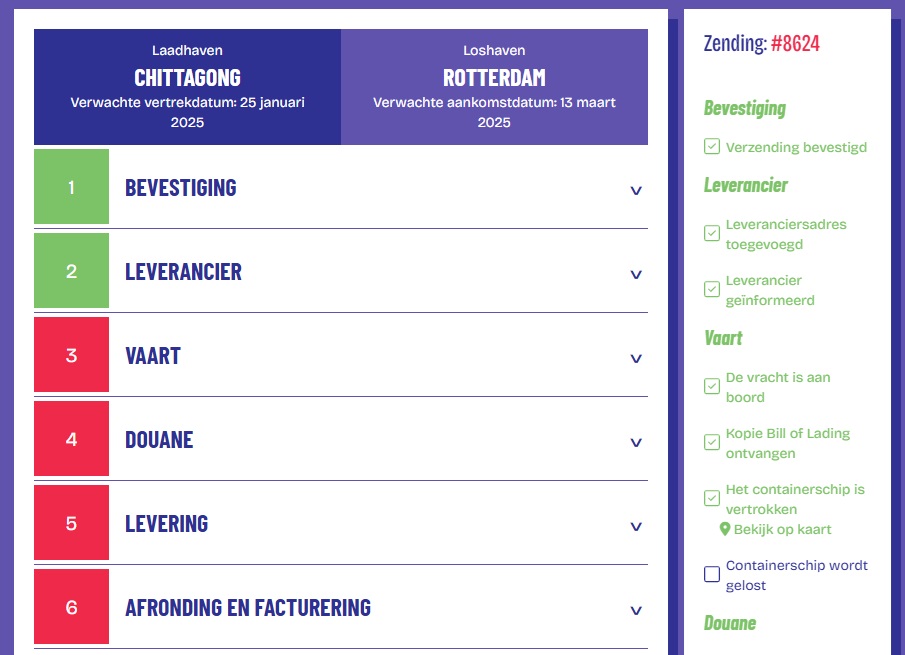
In the overview of the shipments you see, among other things, the status of the shipment.
- Pre-Booking
- Transport
- Port of discharge
- Delivered
- Completed
You can also filter on the status.
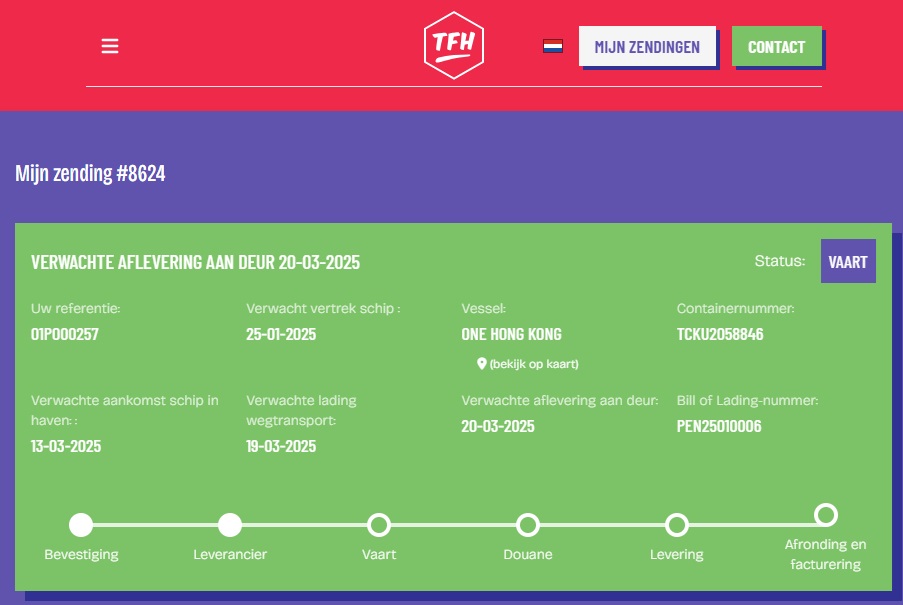
When the shipment is Confirmed (Step 1) and the Supplier details (Step 2) are linked to the shipment, then the shipment gets the Status Pre-booking. The local agent is then in contact with the supplier (shipper) to coordinate the delivery.
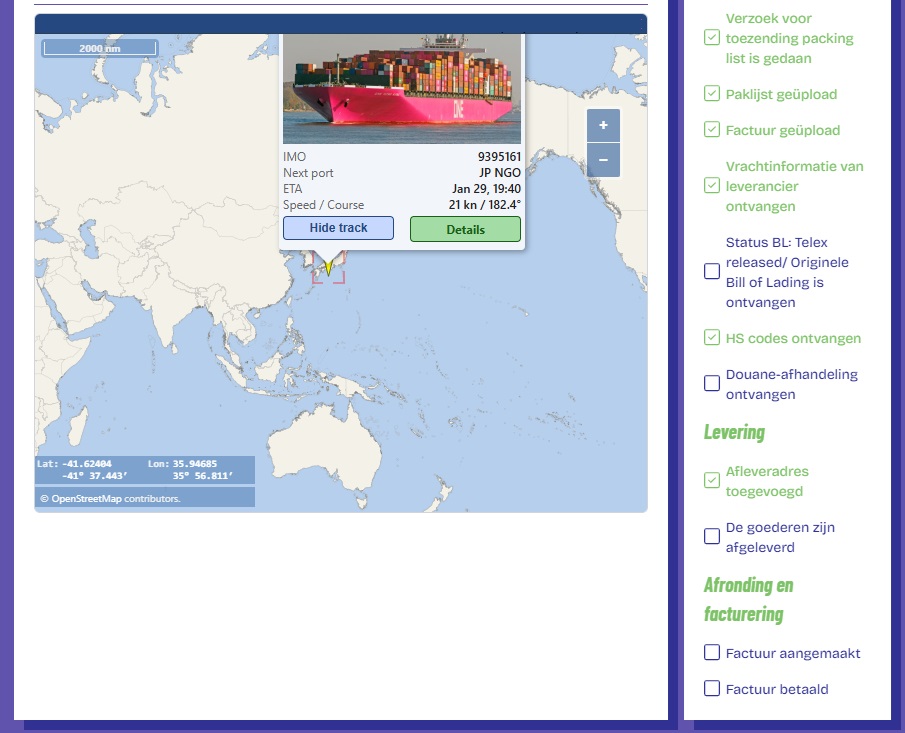
After the coordination, the final booking takes place and the boat name, the expected departure date (ETD) and arrival date (ETA) appear in the dashboard. As soon as the boat has departed, the Expected Time of Departure (ETD) will change to Actual Time of Departure (ATD).
After ATD the shipment is in the Transport (Step 3) and within 1 to 2 days after the ATD the Bill of Lading will be visible here. The status of the shipment is then changed to Status Transport.
It is now important to upload the customs documents (Packing list and Commercial invoice). This can be done in Step 4 Customs. State here also the HS Code(s) received from the supplier. The packing list, commercial invoice and the Bill of Lading (BL) must correspond with each other. Also check whether the supplier has correctly stated the agreed Incoterm.
In Step 5 Delivery you indicate where the shipment can be delivered. Please note: If you do not have a forklift at the unloading, then indicate that the truck must have a tail lift. As soon as the boat appears at the terminal in the port of discharge, then the shipment will get the Status Port of discharge. As soon as the shipment is delivered to the door, it changes to the Status Delivered. A few days after delivery the Proof of Delivery (POD) will be visible.
In Step 6 Completion and invoicing the invoice of the shipment will appear. When the invoice is paid, then the shipment will get the Status Completed.
This is how you install your dashboard as an app on your smartphone
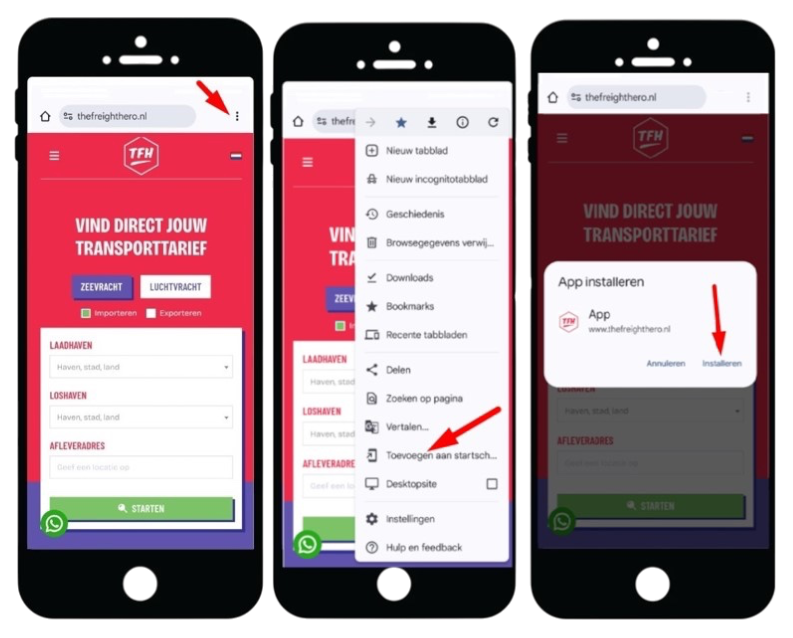
You can install the The Freight Hero booking portal as an application on your smartphone. It is advisable to first install the internet browser Chrome for this. Via www.thefreighthero.nl you add the website to your home screen and install it as an App.
This is how you can log in and arrive in your dashboard
The first time you use the app you log in with the username and password. It is of course convenient to stay logged in for more frequent use of the app.
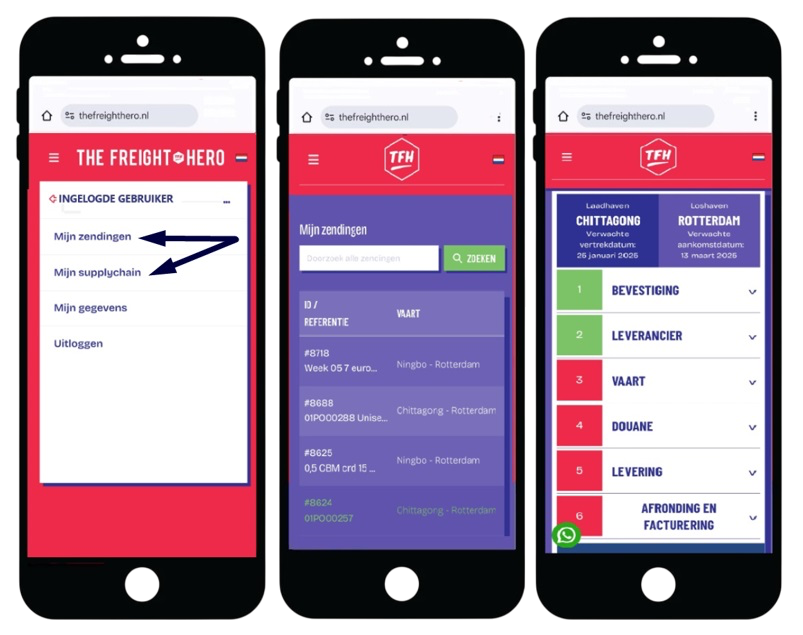
This is how you go to your My shipments and My supply chain
Navigating is very simple. Within My shipments and My supply chain you can navigate horizontally by swiping the overview to the right or left. You can open and close the ordering steps by clicking on them. If an ordering step is completed, then the step gets a green colour. If the step is not yet completed, then the step stays red. If you scroll down vertically, you see exactly which actions within the ordering steps have not yet been ticked off and which actions still need to be taken.
At The Freight Hero we make sure that your transport is well arranged and that you are always fully informed and can follow the shipment in real time. Choose reliability and make every shipment a success!